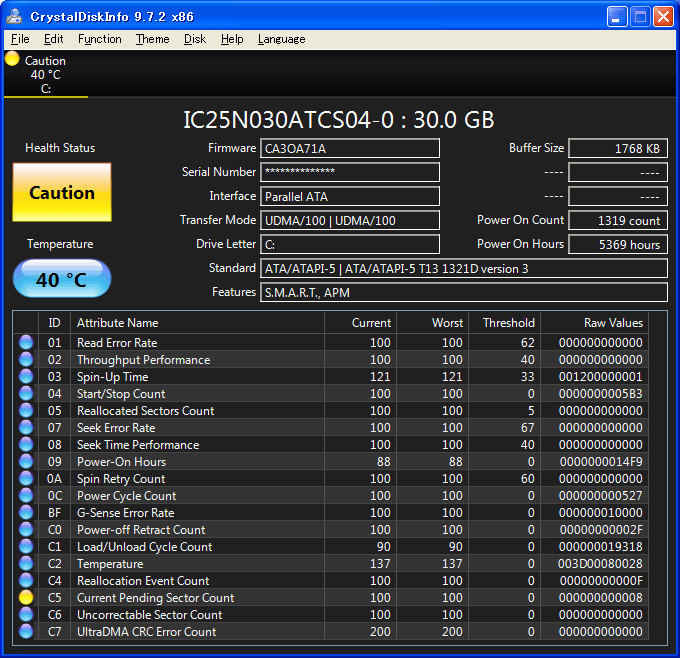
When you open CrystalDiskInfo, it can be unsettling to find the health box reporting a yellow “Caution” or red “Bad.”
Here is what matters most:
When CrystalDiskInfo reports “Caution” or “Bad” on a Windows PC, copy your important files to a second drive first, then start looking for the cause.
A “Caution” result does not mean the drive will die within the hour. It also offers no promise that the disk will keep running safely for another month or another year.
CrystalDiskInfo will not name the day a drive fails, and it cannot measure exactly how much life is left. It reads the S.M.A.R.T. counters the drive itself reports and translates them into plain language, so you can judge when to back up your files or swap in a replacement.
*Keep in mind that CrystalDiskInfo cannot read every HDD and SSD on the market. On a few models the health verdict may come out wrong, so please get in touch if a rating looks off. Some drives also ship with odd S.M.A.R.T. values written at the factory, and that is a situation CrystalDiskInfo may not be able to correct.
Three Steps to Take Right Away
1. Copy Your Irreplaceable Files to a Second Drive
Start with everything you would hate to lose, such as:
- Photos and videos
- Work documents
- Email data
- Creative projects
- Game save files
- Personal records
Good places to put that copy:
- A second internal SSD or hard drive
- A USB external SSD or hard drive
- A NAS device
- A cloud storage service you trust
Copying files into another folder or another partition on the same physical disk is not a backup. When the drive itself quits, every partition on it can disappear at once.
If copy errors appear, grab the most valuable files first and move them in small groups. Hammering the same failed transfer over and over only adds stress to a shaky drive.
2. Record What CrystalDiskInfo Reports
Capture a screenshot of the CrystalDiskInfo window so you can compare the readings later on.
You can also select Edit > Copy to copy the drive details as text. That record is handy when you talk with the PC maker, the drive maker, a repair shop, or support staff.
3. Plan a Replacement Once the Copy Is Done
A disk reporting “Caution” or “Bad” should never remain the only home for files you care about.
With the copy finished, look up whether the PC or the drive is still covered by warranty, reach out to the maker when it is, and budget for a new disk.
How “Caution” Differs From “Bad”
“Caution”
“Caution” tells you CrystalDiskInfo spotted wear or a possible fault in at least one of the attributes it watches.
On a hard drive, the default health rating leans mainly on these attributes:
- 05: Reallocated Sectors Count
- C5: Current Pending Sector Count
- C6: Uncorrectable Sector Count
Once one of those counters climbs past its configured threshold, the status flips to “Caution.”
“Caution” is not a promise of imminent failure, yet the disk is clearly no longer in factory-fresh shape. Read it as a nudge to test your backups and price out a replacement.
“Bad”
“Bad” can appear once the normalized value the drive reports drops under the limit set by its manufacturer.
At that point the disk may already be misbehaving. If files you need still live there, stop using it for daily work and pull the data off right away.
Reach out to a professional recovery lab when:
- Files cannot be read
- The drive clicks, buzzes, or grinds
- The connection keeps dropping out
- Windows stops detecting the disk
Running a drive that is failing mechanically usually makes recovery harder and more expensive.
Three Hard Drive Counters Behind Most “Caution” Warnings
05: Reallocated Sectors Count
Hard drives keep spare sectors in reserve to take over from areas that can no longer hold data safely.
This counter shows how many sectors have already been handed off to those spares.
One or two is not a death sentence for the disk. A number that keeps climbing, though, suggests the recording surface is breaking down.
C5: Current Pending Sector Count
This counter tracks shaky sectors that failed a read and are still waiting for a verdict.
While it sits above zero, you may run into:
- File read errors
- System freezes
- Failed copy operations
- Slow response times
The figure can fall again if the sector later reads or writes cleanly, or it may be retired into a reallocated sector.
A return to zero still does not prove the disk is back in perfectly healthy condition.
C6: Uncorrectable Sector Count
This counter covers sectors the drive’s own error correction could not rescue.
Anything stored in them may already be unreadable, so treat a nonzero value as a signal to save whatever is still accessible.
What “Caution” Means on an SSD
Solid-state drives report health in their own way, not the way hard drives do.
CrystalDiskInfo may draw on readings such as:
- Remaining life
- Percentage used
- Available spare capacity
- Endurance counters specific to the vendor
Which of those appear depends on the SSD maker and its controller.
On many SSDs, CrystalDiskInfo switches to “Caution” once remaining life falls to 10% or below.
That figure is only an estimate built on the write endurance the maker specified, and it does not convert neatly into a number of days or months left.
When remaining life is running low, make sure your backups are fresh and start shopping for a replacement SSD.
If the Status Says “Good,” Can You Skip Backups?
No.
A “Good” rating in CrystalDiskInfo is no guarantee against a sudden failure or the loss of your files.
Certain S.M.A.R.T. counters do line up with a higher risk of failure, but plenty of drives quit without raising any flag first.
Files that matter belong in at least two places, whatever the health panel happens to say.
CrystalDiskInfo is a warning light, not a backup. It hands you the facts you need to decide when to copy data or retire a disk.
Hold Off on These Until the Backup Finishes
Seeing “Caution” or “Bad” makes it tempting to start hammering the disk with tests.
If the only copy of your data sits on that drive, though, secure it before you try any of the following:
- Long benchmark tests
- Full-drive write tests
- Large file copies you do not actually need
- Formatting or reinitializing the disk
- Repair routines that can rewrite or wipe data
Save the testing and troubleshooting for after your files are safely elsewhere.
Watch the Direction the Numbers Move
With S.M.A.R.T. data, today’s number matters, but the trend over several weeks tells you more.
Once your backup is done, open CrystalDiskInfo now and then and jot down the raw values of the attributes that raised the flag.
If 05, C5, or C6 keep creeping upward, replacing the drive is strongly advised.
A steady value is still no guarantee of safety, and on any system you depend on, swapping the disk after the first warning is the safer call.
Common Questions About Drive Health
Can I Turn “Caution” Back Into “Good”?
CrystalDiskInfo does let you adjust some of the thresholds behind the health rating.
Flipping the label from “Caution” to “Good,” however, repairs nothing about the hardware.
Chasing the warning off the screen helps no one. Copy the data and track down the cause instead.
My C7 Interface CRC Error Count Keeps Rising
C7 normally counts communication errors between the drive and the rest of the PC.
Possible causes include:
- A defective SATA cable
- A loose connector
- A power-supply problem
- Poor electrical contact
Reseat or swap the cable, then watch whether the raw value stops moving.
Because the count is usually cumulative, it may stay above zero long after the real problem is gone.
Why Doesn’t My External Drive Show Up?
Plenty of USB bridge chips and enclosures never pass along the commands needed to fetch S.M.A.R.T. data.
A disk missing from the CrystalDiskInfo list is not proof that the disk is fine.
Check the enclosure specifications along with any diagnostic tool offered by the drive or enclosure maker.
Is It Safe to Keep Using a Drive Marked “Caution”?
Using it for scratch data you could lose without a second thought is a reasonable choice.
It should not, however, be the only place your important files live.
Lost data almost always costs more than a new drive.
Summary
When CrystalDiskInfo raises “Caution” or “Bad,” work through this list:
- Copy important files to a separate physical drive or storage service.
- Keep a screenshot and a text copy of the CrystalDiskInfo readings.
- Look up the warranty status of the drive and the computer.
- Read through the maker’s diagnostic tools and support notes.
- Fit a replacement HDD or SSD when the readings call for it.
The worst move is spending an afternoon studying the warning while your data still sits in one place.
Copy first. Diagnose second.
We hope CrystalDiskInfo gives you an early heads-up and helps keep your files intact.